Getting Started with the Akuity Agentic Control Plane & MCP Server
Jiacheng Xu

Platform teams want AI agents to help with delivery: answering fleet questions, investigating incidents, even taking action when something needs to change. But giving an agent that kind of access raises a harder question than "can it help?" It's "what should it be allowed to do, and how will you know what it did?"
Your engineering leads want teams moving faster with AI agents. Your platform engineers need guardrails, safety, and audit trails before they'll allow it. Most organizations end up choosing one or stalling on both.
The Akuity Agentic Control Plane addresses both. It gives AI agents the delivery context they need, such as which Argo CD and Kargo instances exist, what's deployed where, and what changed and when, and it lets your organization set what those agents can change. Claude Code, Codex, or an agent you built yourself connects through the Akuity MCP Server. When a problem needs deeper context, your agent can hand the work to one of Akuity's native agents: the On-Call Agent, the Promotion Advisor, or the Deployment Advisor.
Section 1: Getting Set Up
Getting connected: confirm your access, switch on the MCP endpoint for the instances you choose, and install the plugin. No step in this section touches a running application.
#1: Connect Your AI Agent to Akuity
Before you begin
This walkthrough uses applications your team already manages, so setup is mostly confirming access. Check that you have the following before you start:
An Akuity Cloud organization with MCP Early Access enabled
An existing Argo CD instance with applications your team already manages
A supported MCP client; we'll use Claude Code here; the agent-plugins repository also covers Codex.
Permissions you’ll need
Every inspection step works with read-only access, and enabling MCP access in the first place needs organization-level rights. You'll need:
Instance update permission to enable access for a given instance
Organization Owner, or Organization update permission, to enable the platform endpoint and configure guardrails
The sync example and the native-agent hand-off later on are optional and need read & write access; every inspection step works with read-only.
Two steps depend on services your team may not run: Kargo history requires Kargo, and the hand-off to one of Akuity's native agents, covered in Section 2, requires the corresponding Akuity services to be enabled. You'll discover your instances and applications first, then use those names in the requests that follow.
#2: Enable MCP Access and Install the Plugin
Open the Connect AI agents page under Organization Settings → MCP Access. On Endpoints, enable the platform endpoint, select the instances the agent should access, and click Save. On Guardrails, confirm Read-only is selected and save any changes.

Figure 1: The Endpoints tab provides the platform connection details. The plugin below configures that connection for you.
The optional Akuity agent plugin packages the MCP connection with maintained workflow skills. In Claude Code, install it with:
The default connection uses https://akuity.cloud/mcp. For an EU organization, after adding the marketplace, install from your shell with the EU endpoint instead:
Run /mcp, select akuity, and authenticate in your browser.
The platform connection uses your Akuity organization permissions and reaches the enabled instances you're allowed to access. Users who authenticate directly with Argo CD or Kargo can use an instance endpoint with native authentication and RBAC. Those connection options are documented separately.
#3: Set Guardrails for Agent Access
An engineer may need permission to change production while the organization is still evaluating how agents should participate. Akuity lets you narrow MCP access without changing that engineer's normal access through the portal, API, or CLI.
The organization has three cumulative guardrail levels:
Level | What it allows |
|---|---|
Read-only | Inspect applications, resources, events, available logs, and delivery history. This is the default. |
Read & write | Add operations such as sync, refresh, rollback, promotion, restart, manifest application, and starting native-agent conversations. |
Full | Also allows operations such as deletion, resource patching, instance-spec application, and approval of native-agent tool actions. |
The level applies across the organization's platform and direct instance endpoints. It limits which MCP operations are permitted; every request must also satisfy the caller's permissions. Read & write can permit production operations when the caller has access, so it should not be treated as a staging-only setting.

Figure 2: The Guardrails tab with Read-only selected and the tool catalog visible.
A tool may still appear in the client's tool list when the selected level prevents its use. Akuity enforces the limit when the agent calls the tool.
Section 2: Put the Agentic Control Plane to Work
You'll ask your agent fleet questions and get answers drawn from your own instances. Then you'll ask it to make a change, watch the platform say no, and raise the guardrail yourself to let it through, with the change on record in the audit log. With write access in place, you'll hand off an investigation to a native agent that already knows your runbooks.
#1: Discover Your Instances
Ask the agent to discover what you can access:
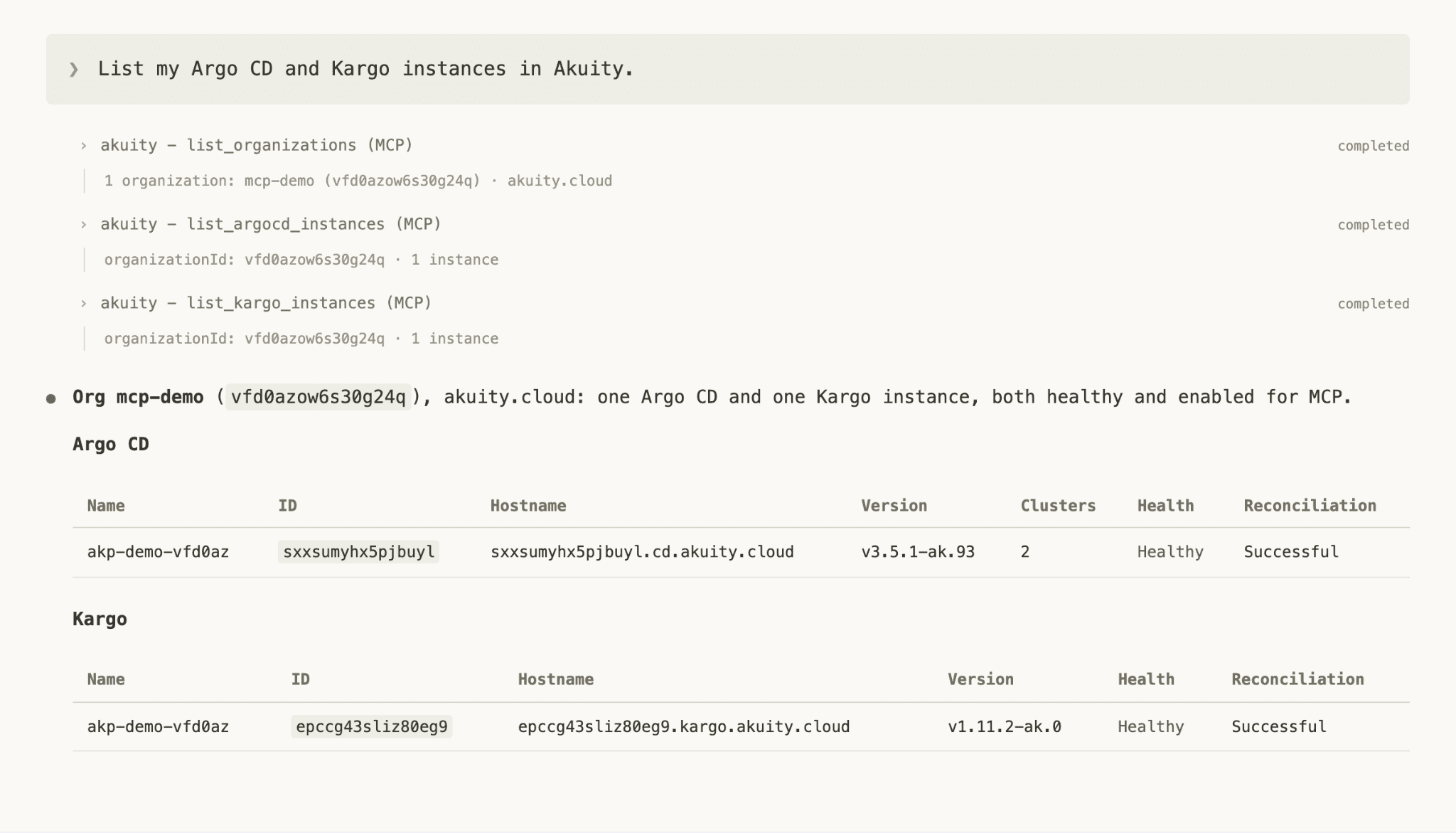
Figure 3: An instance discovery request through the platform connection. Your response will contain your own instance names and IDs.
Use the returned organization and instance names to scope the following requests. If an expected instance is unavailable, check that MCP access is enabled for it and that your account has permission to access it.
#2: Find out Which Versions are Running
Start with a question that spans your accessible environments:
Specifying what you mean by “version” makes the answer more useful. A Git revision identifies desired configuration, while a container image tag or digest identifies the workload image. Ask the agent to distinguish the image declared in the desired configuration from the image reported by running workloads where that information is available.
The report gives you a starting point for spotting unexpected version differences or applications that need attention. Check a representative application against its Argo CD view, and ask the agent to identify any instances or data it could not inspect.

Figure 4: A real fleet query and response showing application names, instances, image versions, health, and sync status. Use the same applications throughout the walkthrough.
#3: Investigate a Single Application in Depth
Choose an application from the report. In the requests below, replace APPLICATION and INSTANCE with its application name and Argo CD instance name or ID. You can review a healthy application's deployment history or investigate one that needs attention:
The agent can connect application state with delivery history and inspect the resources involved. Available workload logs can add evidence, but they require the relevant data collection to be enabled for the organization, Argo CD instance, and cluster.
Use the response to separate observations from possible causes. A deployment preceding an error is a useful lead; resource events, logs, and verification results help determine whether the release explains the problem.
If the evidence points to a fix, change the configuration in Git, then sync the application once the change is reviewed.
These inspection requests work within read-only MCP access.
#4: Request a Sync and Get Blocked
Try this optional step when your team has a staging or development application ready for a manual sync. Choose it from the report and review its desired revision and pending diff using your normal deployment process. Your account must have permission to sync it, while the organization's MCP level remains Read-only.
When the agent calls the sync tool, Akuity rejects the request before execution. The tool error identifies both the level required for the operation and the organization's configured level. The blocked call does not sync the application.

Figure 5: An actual MCP sync rejection showing the required Read & write level and the configured Read-only level.
This demonstrates the distinction between the engineer's access and what the agent may do through MCP. Akuity enforces the rejection independently of the wording in the prompt.
#5: Raise the Guardrail and Complete the Sync
To let the sync through, an Organization Owner or someone with Organization update permission changes the MCP level. Open Organization Settings → MCP Access, go to the Guardrails tab, select Read & write, and save.
Read & write applies to the whole organization, not a single environment. It permits production operations wherever the connecting user already has permission, so confirm your team is ready for that before saving.
Send the same request again:
Sync APPLICATION in Argo CD instance INSTANCE
to the desired revision we reviewed
This time the sync runs. Confirm the result in Argo CD, then open the audit log. The log records the sync under your user or API key and tags it as an MCP action. To see agent activity on its own, filter by Actor → Via MCP only. Reads and refreshes don't create these entries; the log tracks changes to managed state.

Figure 6: Use the Actor filter's Via MCP only option to find recorded MCP activity.
#6: Permit the Operation and Verify It
If your organization is ready to permit write operations through MCP, an authorized administrator can select Read & write under Guardrails and save the setting. Remember that this changes the organization's MCP limit, not just this application's access.
Repeat the reviewed sync request for the same application and instance. With the required permissions and guardrail level, the request can proceed. Ask the agent to follow the sync to completion and report the application's health. Verify both before considering the work finished.
An Organization Owner can review the recorded sync in Audit Logs, using Actor → Via MCP only. The entry identifies the authorizing caller and marks its MCP origin.
These audit entries cover recorded changes to managed state. Reads, application refreshes, and hand-offs to Akuity's native agents do not create those mutation audit entries. See the Audit Logs documentation for the platform's audit views and archive downloads.
You connected an agent, watched it answer fleet questions, and saw it hand off an investigation to a native agent with its own runbooks and permissions. Then you saw the platform block a change it wasn't yet allowed to make, and permit that same change once you raised the guardrail, with the result on record in the audit log. That's the model: agents get the context to help, and your organization decides what they're allowed to do with it.
#7: Hand Off to a Native Agent
With Read & write in place, your agent can start conversations with Akuity's native agents. Continue with the application you investigated in step #3. If the evidence points to a fix, ask the agent to validate it before acting:

The agent can run a server-side dry run against the proposed change before it touches the live application. Once validated, the agent can sync, roll back, patch, or restart the application, subject to the guardrail level in place.
For incidents that need more than a single fix, the agent can hand the investigation off to the On-Call Agent, which already has the relevant runbooks and permissions to act. It holds anything that needs approval, and reports the outcome back through your agent, so you stay in one conversation instead of switching tools.
Try It with Your Environment
The Akuity MCP Server is available in Early Access for selected organizations on Akuity Cloud. Contact your Akuity account team or support to request access.
Start with one fleet question and read-only access. The Akuity agent-plugins repository provides installation instructions and workflow skills, and the connection reference covers endpoint and authentication options.
Additional Resources
Book a demo — Contact us today; we will map the Control Plane to your delivery setup.
Introducing the Akuity Agentic Control Plane and MCP Server — why we built it and how governance is implemented
Agentic Control Plane documentation: connecting a client, agent permissions, audit filtering
Akuity MCP Server reference: endpoints and the available tool catalog
Akuity agent-plugins repository: installation for Claude Code and Codex, plus the maintained skills
Connection and authentication reference: platform and direct instance endpoints
Full demo video — an agent troubleshooting, promoting, and onboarding through the Control Plane
Frequently Asked Questions
Q: Can an agent connected through the Akuity MCP Server do more than the person who connected it?
A: No. Every MCP request is authenticated as the specific user or API key that connected the agent, and the request must satisfy that caller's existing Akuity permissions. The organization's guardrail level can only narrow what an agent may do; it never grants access the connecting user does not already have.
Q: What do the three Akuity MCP guardrail levels allow?
A: Read-only, the default, permits inspection of applications, resources, events, available logs, and delivery history. Read & write adds operations such as sync, refresh, rollback, promotion, restart, and manifest application. Full also allows deletion, resource patching, instance-spec application, and approval of native-agent tool actions.
Q: Is Read & write a safe setting for teams that only want agents acting in staging?
A: No. The guardrail level applies to the whole Akuity organization, not to a single environment or application, so Read & write permits production operations wherever the connecting user already has permission to perform them. Environment scoping comes from the caller's own permissions, not from the guardrail level.
Q: Are actions taken by an agent recorded in the Akuity audit log?
A: Changes to managed state are recorded under the user or API key that authorized them and tagged as MCP actions, which an Organization Owner can isolate with the Actor → Via MCP only filter. Reads, application refreshes, and native-agent conversations do not create those mutation entries.
